The desktop app is being released firm by firm. If the help menu has no download in it, your firm doesn't have it yet.
Installing and signing in
The installer comes from the web app, and the way you sign in depends entirely on your firm.
Junior for Mac and Windows is an app you install once and sign in to. Some firms have their IT team push it out for you, so check whether it's already on your machine before downloading anything.
Install
- Sign in at app.myjunior.ai in a browser.
- At the bottom of the sidebar, next to Settings, press the question-mark button.
- Choose Download the desktop app. Junior works out which platform you're on and sends that installer, so there's nothing to choose.
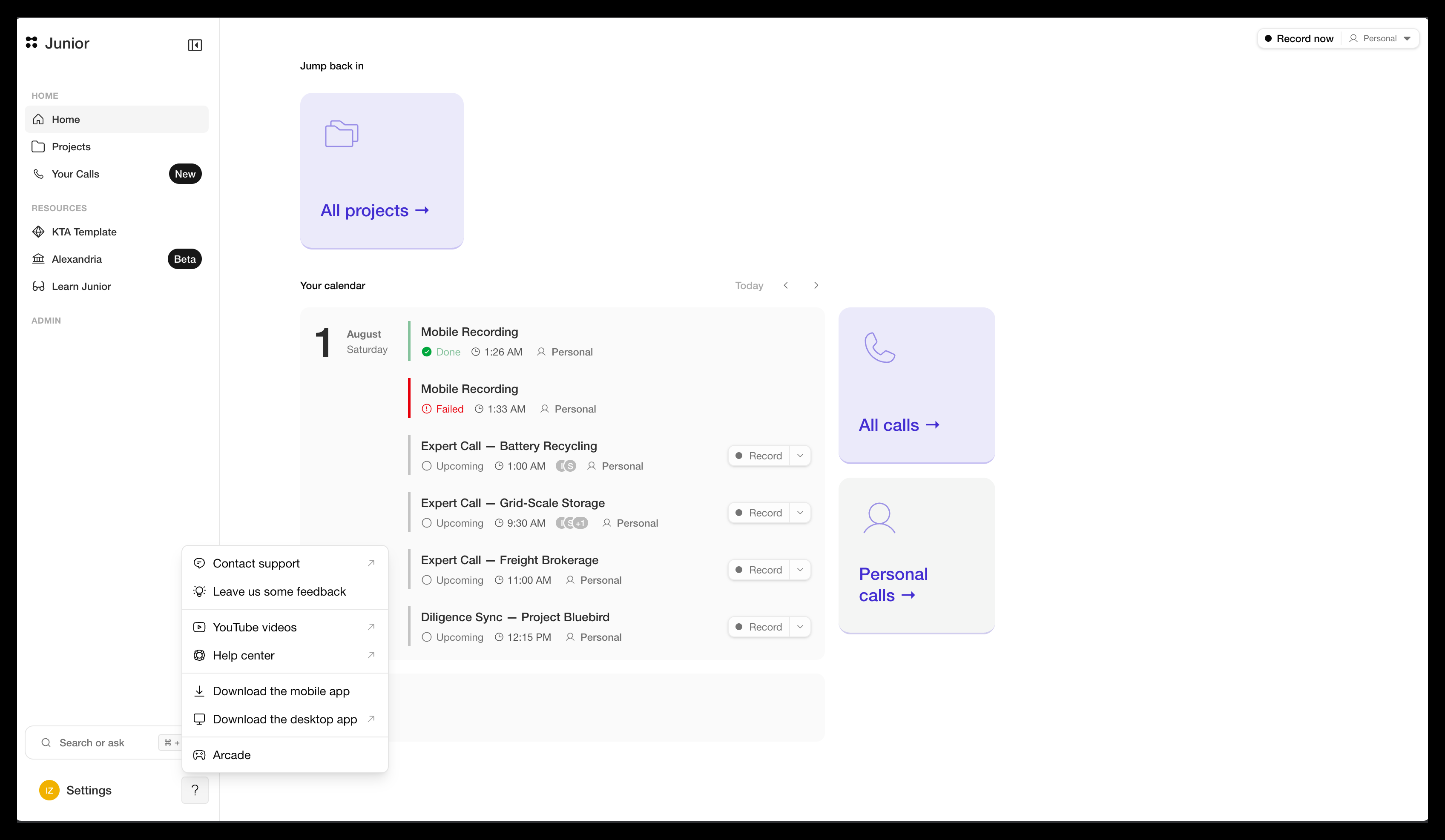
Then install what downloaded, and sign in as below.
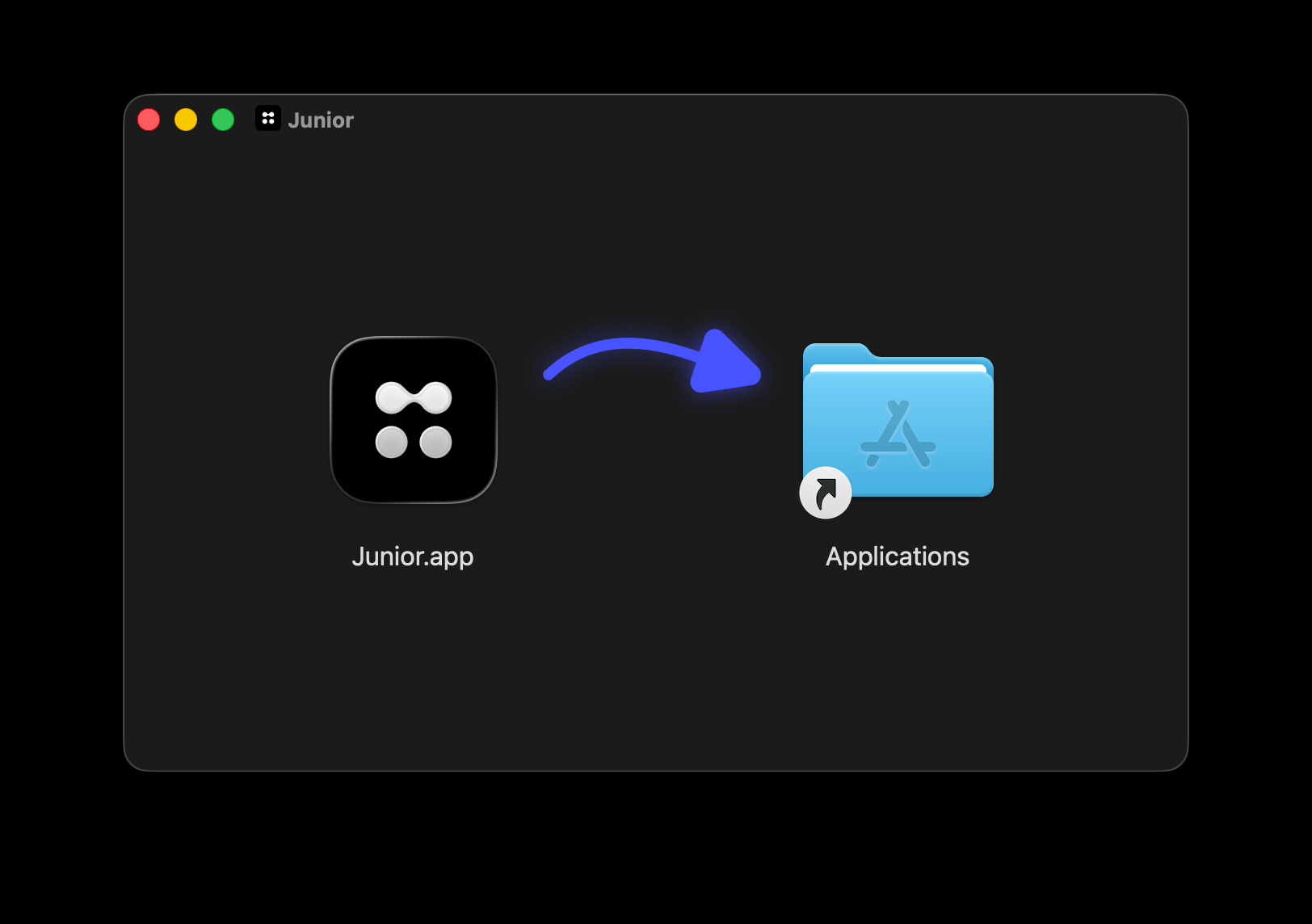
Needs macOS 14.4 or later. Open the .dmg, drag Junior into your
Applications folder, and open it from there.
Sign in
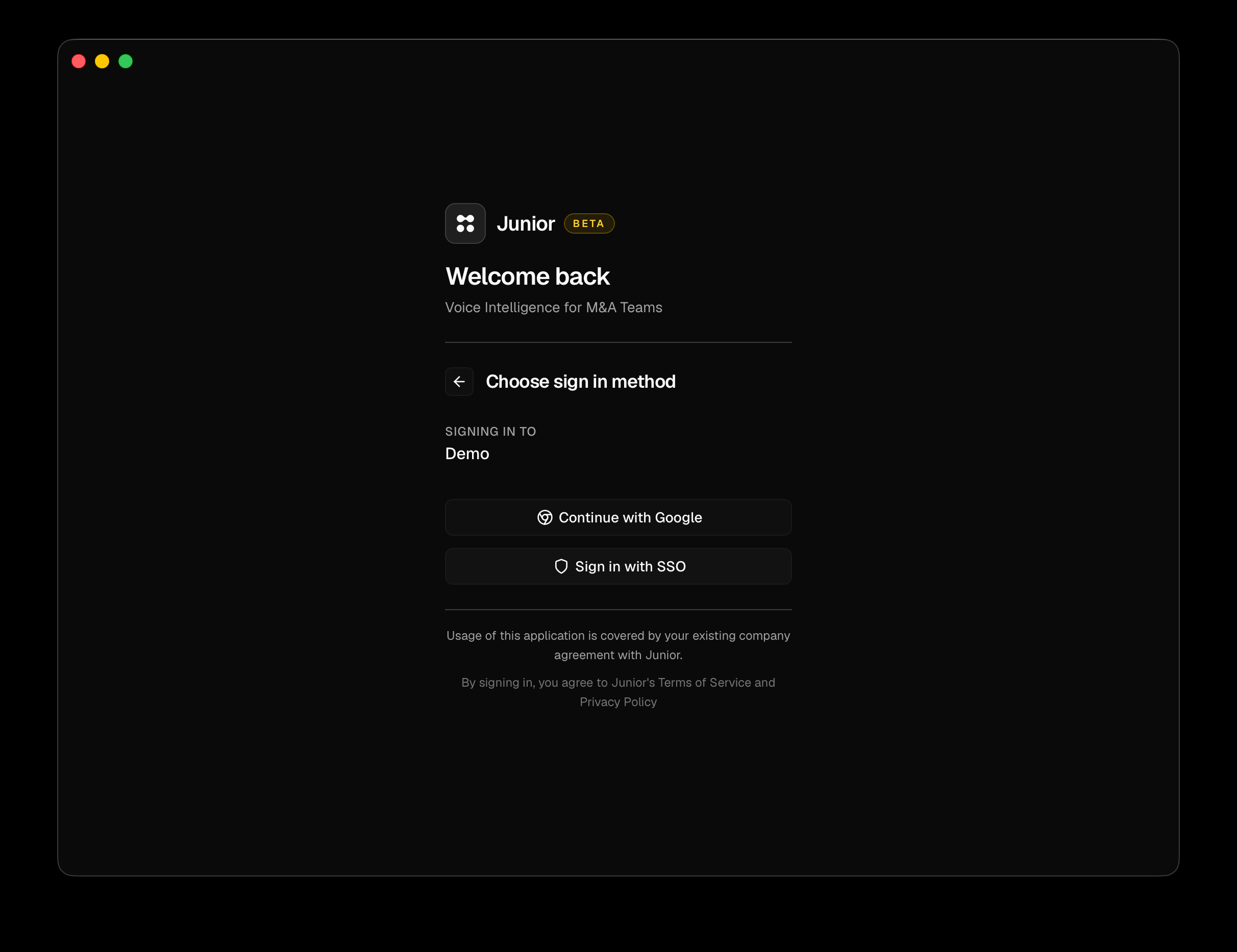
- Open Junior. Type your Work email (the field shows
you@company.com) and press Continue. - Junior asks your firm which methods apply and shows only those:
| Button | What happens |
|---|---|
| Continue with Google | Opens your firm's Google sign-in in a browser |
| Continue with Microsoft | Opens your firm's Microsoft sign-in in a browser |
| Sign in with SSO | Opens your firm's own sign-in page. Often labeled with your firm's name |
| Email me a sign-in code | Sends a six-digit code to that address |
- For a code, check your email and enter it on the Enter sign-in code screen, then press Verify and sign in. If it doesn't arrive, Resend code becomes available after thirty seconds.
While a browser sign-in is in progress Junior waits, telling you "A browser window has opened. Return here after signing in."
Questions
It says no sign-in methods are available for my organization.
Junior recognized your firm but hasn't been given any way to sign you in. That's a configuration step on Junior's side or your IT team's, not something you can work around. The message tells you to contact your administrator because they're the ones who can fix it.
Do I need to sign in separately on my phone?
Yes. The two apps are separate installs, each with its own sign-in. See installing and signing in on your phone. Your calls appear in both once you're signed in to both.