There are several ways to get a call into Junior: record it live, invite a note-taking bot, or upload something you already have. Some calls also arrive on their own.
Adding a call yourself
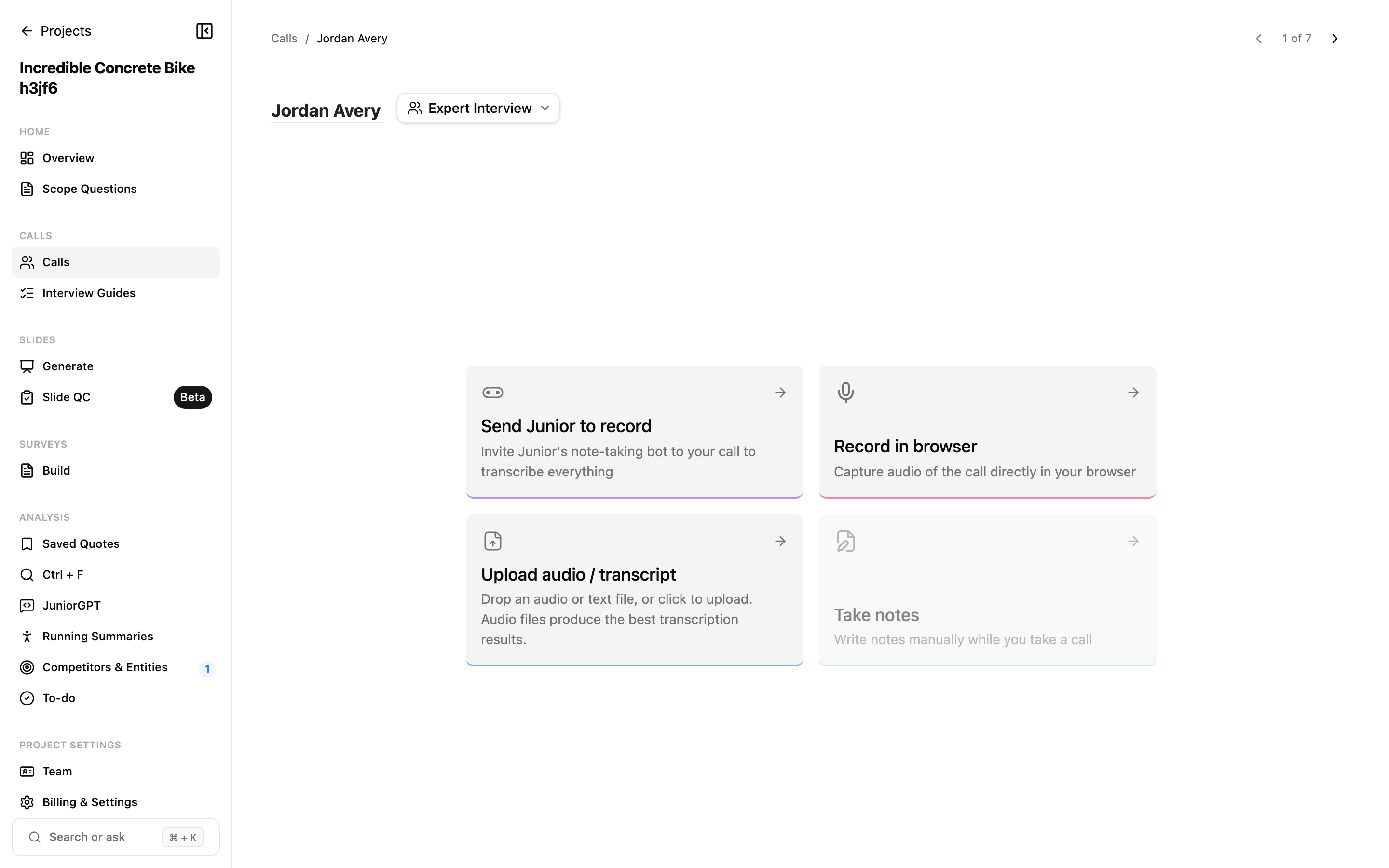
When you open a new, empty call, you'll see the capture methods your firm has enabled — up to four. The exact wording of these options can differ depending on your firm's setup, so the labels below may read slightly differently for you:
- Send Junior to record: invite Junior's note-taking bot into a Zoom, Teams, or Google Meet meeting. Best for remote meetings you'll be attending. Note: some expert networks may block external bots from joining. In those cases, you will need to use an alternate ingestion method.
- Record in browser: capture the conversation straight from your browser, no bot required. This uses your computer's microphone rather than the internal soundcard, so keep your computer on loudspeaker so the microphone picks up the entire conversation. Do not connect to external headsets, earphones, or speakers.
- Upload audio or a text transcript: bring in a recording or transcript you already have. Where possible, provide an audio recording, since Junior is optimized to transcribe recordings.
- Take Notes: Hand-type your own verbatim notes.
Which one should I use?
| Situation | Best option |
|---|---|
| A remote meeting you'll join | Send Junior to record (the bot) |
| A quick capture with no bot in the room | Record in browser |
| A recording you already have | Upload (highest transcription quality) |
| An expert network your firm uses | Arrives automatically (see below) |
Calls that arrive automatically
Some calls show up in Junior without you adding them. Depending on how your firm has set up Junior, calls can flow in through:
- A desktop or mobile app
- Zoom Phone
- An Expert Network integration: transcripts are pulled from the networks your firm has connected, then matched to the right project
- A transcript emailed to your firm's inbox
- Junior's AI Voice Agent, which can run an interview on its own
These calls may appear in the Your Calls tab of your homepage if Junior can't match them automatically to a project based on the metadata. To get there, exit your project by clicking the Projects button in the top-left corner of the page. This takes you back to the homepage, where you'll see the Your Calls tab on the navigation bar.
Connecting your calendar
Connect your Google or Outlook calendar to pull your meetings into Junior. From there you can add a meeting and send the bot in one click, without copying links around.
Consent and recording notices
Junior always shows a recording notice so participants know a call is being captured. Some firms add an extra confirmation step that you'll need to complete before recording begins.
Recording laws vary by region. Make sure you have the consent you need before recording any call. When your firm requires the extra confirmation step, recording won't start until you complete it.
Questions
Why don't I see all three capture options?
Any of these can be turned off by your firm. If an option is disabled, it appears as "not available for your organization." Which options you see depends on your firm's setup.
Why did a call I didn't add show up?
It most likely came from an expert network, Zoom Phone, or an emailed transcript. Junior tries to match each incoming call to the right project automatically. If it can't tell where a call belongs, you'll see a "Needs project" status in the Your Calls tab — assign it to the correct project and it'll continue processing.
Why didn't the bot join, or why can't I send a bot to this meeting?
Usually one of these: the meeting is marked restricted, the meeting link isn't a supported type, the event is already in the past, or recording is turned off for your firm. The host of the meeting (for example, a client or expert network) may also have restricted or rejected the bot from joining the call.