"Sharing" in Junior can mean four different things, and each one gives access to a different set of people.
The four ways to share, at a glance
| Type | What it does | Who it's for | How access works |
|---|---|---|---|
| Project access | Adds specific people to a single project | Named colleagues | Manual: you invite each person or share a link |
| Organization access | Makes a project visible to everyone in your organization | Your own colleagues | Automatic: opening the project joins you to it |
| Cross-organization sharing | Links your project to a project at another organization | A different firm | Manual: every shared call must be approved |
| Personal call sharing | Grants specific teammates access to a personal call | Your own colleagues, by email | Manual: you name each person |
1. Project access (inviting specific people)
Project access adds specific people to a single project. It's the most direct way to share: you choose exactly who gets in, whether or not organization-wide visibility is on.
On the project, open Project settings. There are two places to add someone:
- Team: copy the invite link to send around, or enter an email to send an invite directly.
- Billing & Settings: add people here too.
People you add this way stay on the project even if you later turn Organization access off. Direct invites aren't touched by the visibility switch.
2. Organization access (project visibility)
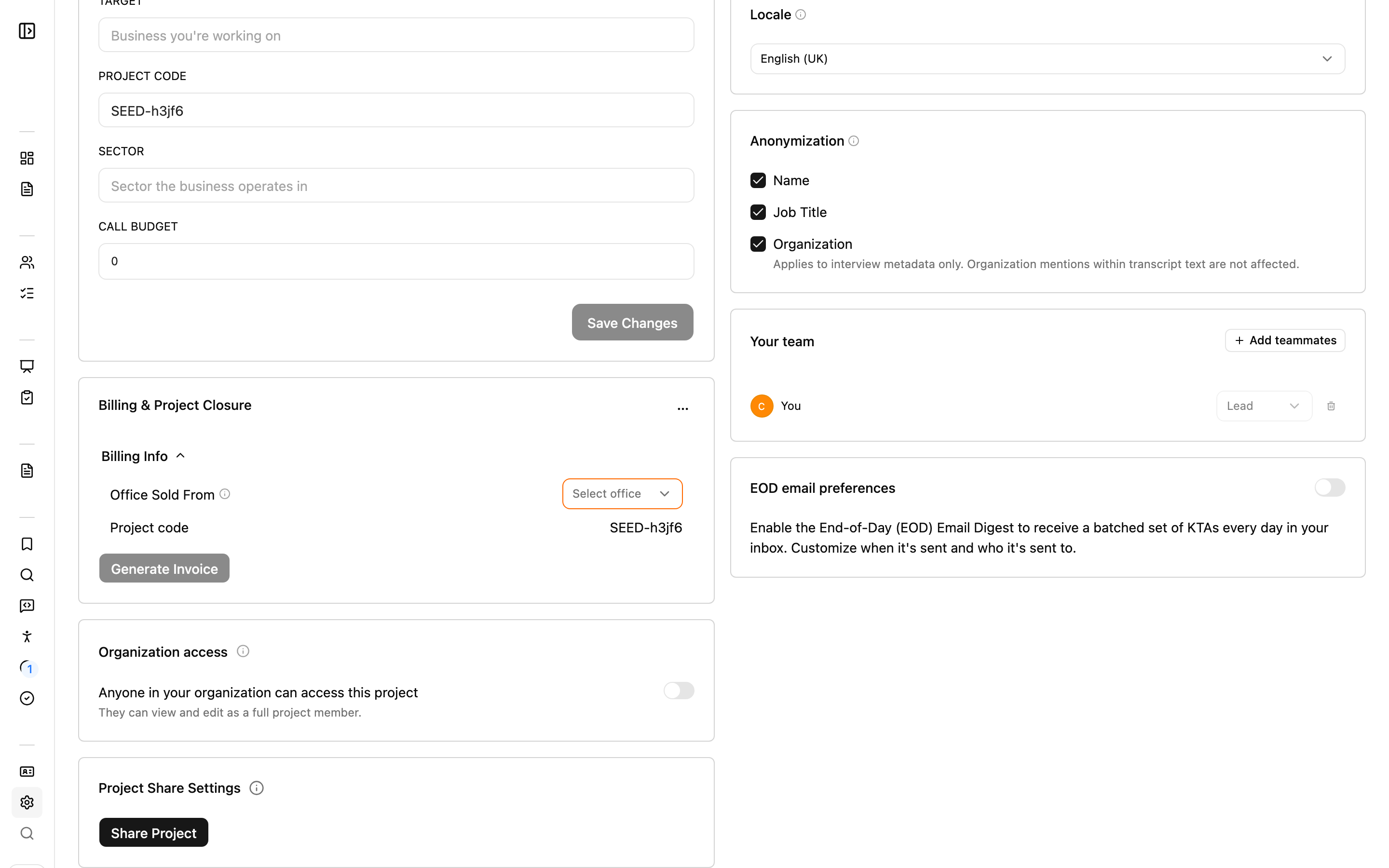
Where project access adds named people, organization access opens the project to everyone in your organization. You'll find this toggle under the Billing & Settings section of the project settings, where you can turn organization-level access on or off.
- When someone opens an org-visible project, Junior automatically adds them as a member.
- Visibility is auto-join. The moment a colleague opens an org-visible project, they become a member. That's usually what you want for team projects, but keep it in mind for anything sensitive.
If you turn the switch off, people who joined only because the project was visible are removed. People you invited directly stay, because turning off visibility doesn't touch them.
3. Cross-organization project sharing
This links your project to a project at a different organization, for example a partner firm or a client.
- Request to link your project to a project at the other organization.
- The other organization must approve the link. Until they do, the link is pending; they can also accept or reject it.
- Once the link is accepted, either side can send calls to the other.
Nothing is shared automatically across organizations. Even after two projects are linked, every shared call must be approved manually. Linking the projects opens the door, but it doesn't hand over any calls on its own.
4. Personal call sharing
Some calls aren't in a project and are just in ‘Your Calls’ on your homepage. These are personal calls.
To share a personal call,
- Click onto the call from the ‘Your Calls’ tab
- Select 'More' on the top right, then 'Share'
- Choose specific teammates by email to grant access to
Personal call sharing works within your own organization only. You can't use it to share a personal call outside your firm.
Other ways to share
- Share a single transcript: copy a link to it or send an update email.
- Bulk-share calls: export and share several calls at once. See Exporting your calls.