Reach for JuniorGPT when the answer is spread across calls and you don't want to open each one. Ask it the way you'd ask a colleague who has read every interview — except this one shows you the quotes behind its answer.
Ask a question
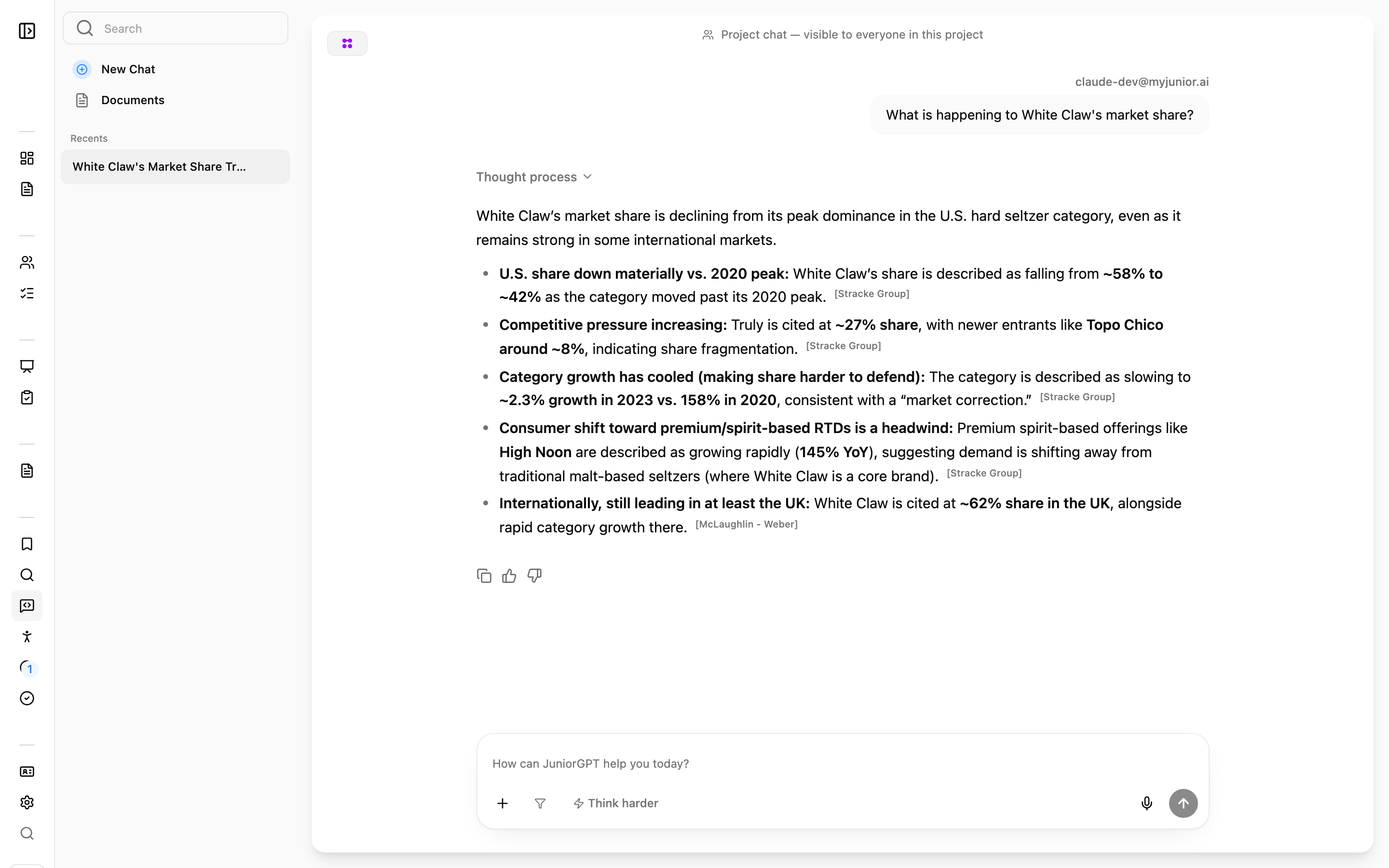
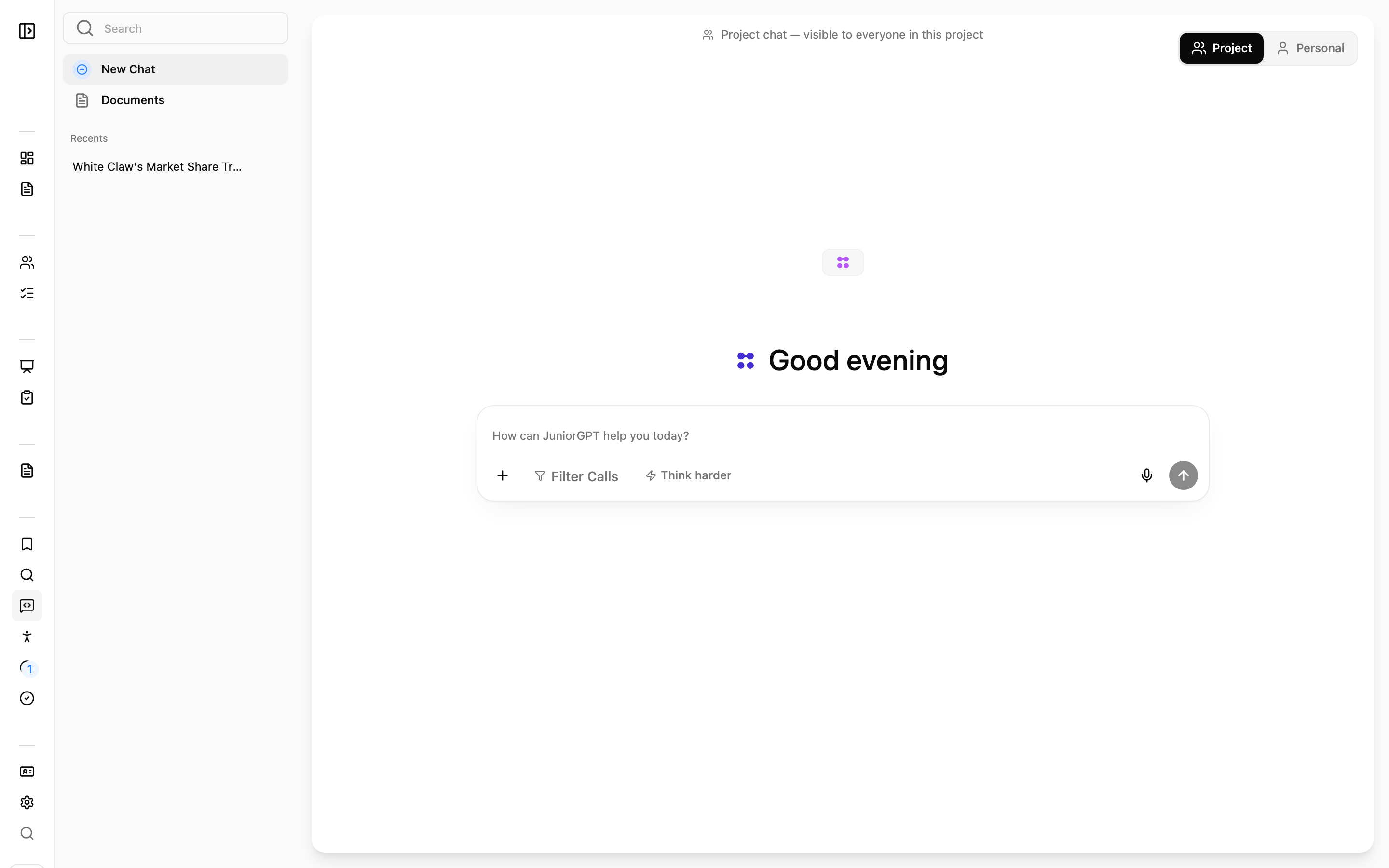
Type your question the way you'd say it out loud ("What did operators say about pricing pressure?"), and JuniorGPT answers from the project's transcripts, citing the quotes and summaries behind its response.
You can also dictate a question with the microphone instead of typing.
Narrow the scope before you ask
Before you send a question, you can filter to specific interviews, people, or countries so the answer only draws on the calls you care about.
You can also upload files to ground the chat in them. Uploaded documents show up as chips so you can see what's in context.
Personal vs Project chats
A toggle lets you choose who can see a chat:
- Project chats are visible to everyone in the project.
- Personal chats are visible only to you.
Switching a personal chat to project makes it visible to teammates. Because this shares the whole conversation, Junior asks you to confirm before anyone else can see it.
Think Harder
The Think Harder toggle lets you trade speed for depth:
- Off uses a faster model, good for quick lookups.
- On uses a slower, more thorough model, better for complex, multi-part questions.
Your choice is remembered in your browser, so it stays set the way you left it.
Behind either setting, Junior picks the model best suited to your question, and updates that choice as stronger models arrive. You get the best result for numbers, quotes, and analysis, without having to think about which model is running.
Working with answers
JuniorGPT gives you a lot of control over what comes back:
- Quotes: quote responses show 3 quotes by default, with a View more to see the rest.
- Citations: citations are clickable and open a Sources panel that highlights the exact sentence behind the answer.
- Rephrase a quote: tidy a quote's wording when you want it to read cleanly.
- Copy an answer: grab the full response in one click.
- Feedback: leave a thumbs-up or thumbs-down to rate the answer.
- Add to Quotes: save a quote into a playlist to reuse later.
- Slides: Junior can generate slides from what you've found.
Managing your chats
The sidebar keeps your conversations organized:
- Search your past chats.
- New Chat to start fresh.
- Your threads appear under Recents, or split into Project and Personal chats.
- Rename or delete any thread.
Questions
Does JuniorGPT search the internet?
No. JuniorGPT only draws on the calls and files in your project. It doesn't look anything up on the web, so every answer comes from your own research.
Why is my uploaded document not showing up in answers?
A document has to finish processing before it becomes searchable. Give it a moment after uploading; once it's ready, JuniorGPT can draw on it like any transcript.
Why is JuniorGPT sometimes slower?
Think Harder is switched on — that's the more thorough model doing more work. Turn it off for quicker answers. Because the setting is remembered per browser, it may still be on from a previous session.