When a call finishes processing, Junior opens it to a set of 4 tabs.
The tabs on a processed call
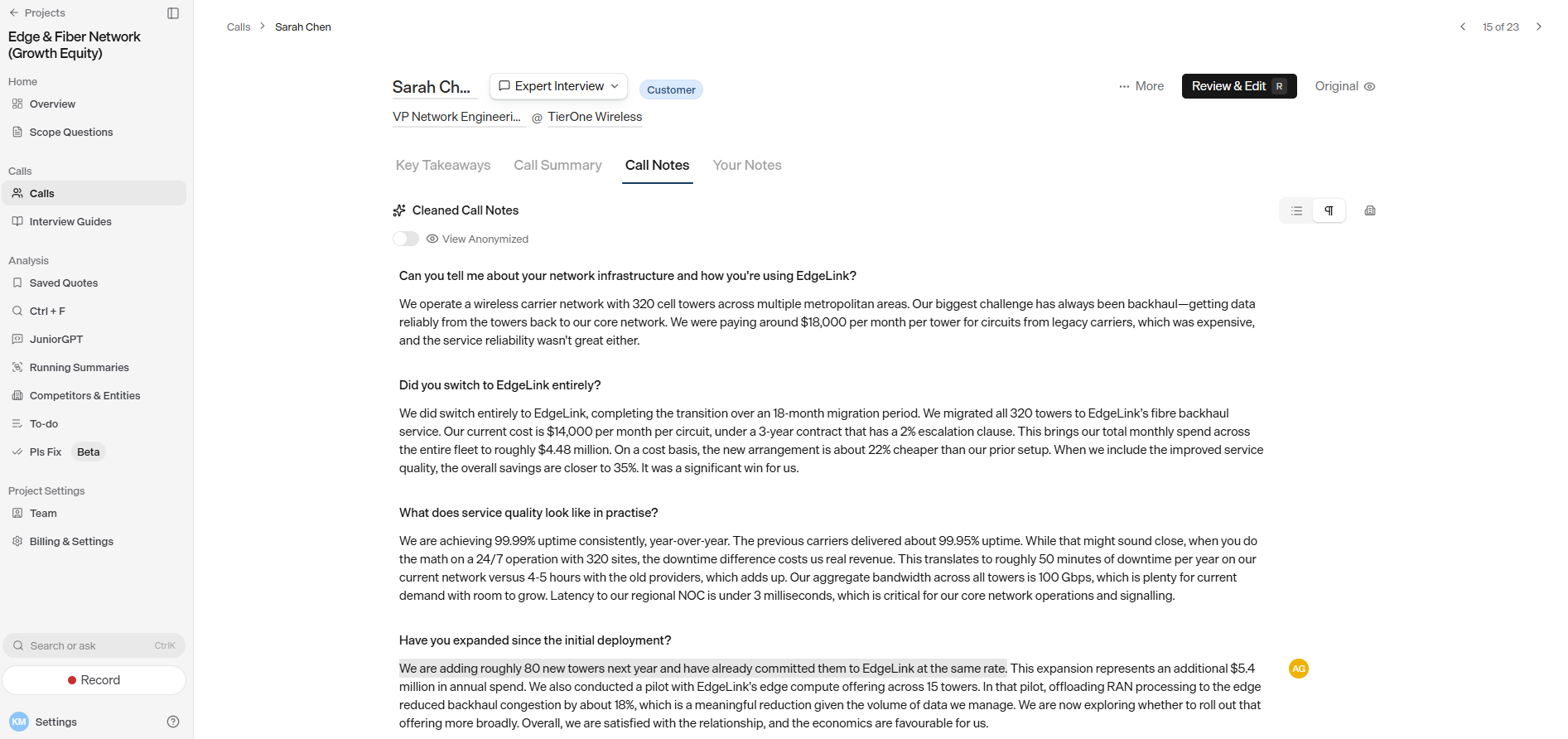
A processed call opens to these tabs:
- Key Takeaways: a curated summary of the call's most important points, grouped into themes.
- Call Summary: a written summary of the call. The call's to-do list sits at the top of this tab, with a number badge counting the open to-dos.
- Call Notes / Cleaned Call Notes / Cleaned Notes: the full call notes from the conversation. The label changes depending on the call (see below).
- Your Notes: your own private notes on the call, visible only to you.
Why the call notes tab has different names
The call notes tab's label reflects the call type and your firm's terminology:
- Cleaned Call Notes: for cleaned interviews.
- Call Notes: for verbatim meetings.
- Cleaned Notes: for cleaned meetings.
The content is the same idea in each case: the call notes of what was said.
While a call is processing
Processing takes a few minutes. While it runs, each tab shows whether it's in progress or completed, along with a progress bar and an estimated time.
Tabs don't all finish at once. The Key Takeaways may be ready before the Call Summary, for example. You can start reading a tab as soon as it's marked completed.
What the status pills mean
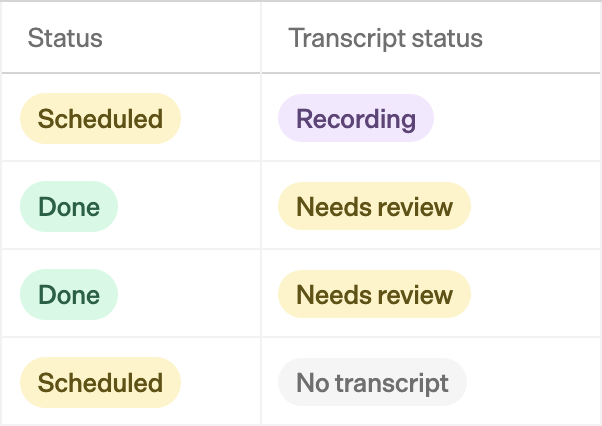
Every call in your calls list carries a status pill, and the row also shows the call's lifecycle phase. The pills fall into a few stages — capture, automatic processing, then anything that needs you — but a call won't necessarily pass through all of them, and these groups aren't a strict step-by-step order.
Before the call
| Status | What it means |
|---|---|
| Scheduled | The call is booked but hasn't started yet. |
During the call
| Status | What it means |
|---|---|
| Joining call | Junior's bot is connecting to the meeting. |
| Recording | The call is being recorded right now. |
| Taking notes | Junior is capturing notes live during the call. |
Processing
| Status | What it means |
|---|---|
| Retrying transcription | A transcription attempt is being retried. |
| Cleaning | Junior is tidying the raw call notes into readable form. |
| Analyzing | Junior is extracting takeaways, the summary, and structured data. |
| Done | The call is fully processed — nothing further is needed. |
Needs you
| Status | What it means |
|---|---|
| Needs review | Call note blocks haven't been stepped through yet. |
| Needs KTA | The takeaways or summary still need confirming. |
| No QA | Junior found no questions in the content — you can add some yourself. |
Problems
| Status | What it means |
|---|---|
| No call notes | There's no call notes for this call. |
| Transcription error | Transcription specifically failed. |
| Corrupted audio | The recording couldn't be read. |
| Error | Something went wrong during processing. |
Lighter processing on some calls
Depending on how your firm has set up Junior, some calls use a lighter processing mode that shows only a summary, with no call notes tab, entities, or other extras.
Questions
Why do call notes tabs have different names?
The label reflects the call type — interview versus meeting — and your firm's chosen terminology. The content is the same idea in each case: the cleaned notes of what was said.
What's the difference between 'Needs review', 'Needs KTA', and 'Done'?
Needs review means the transcript has been cleaned but not yet human-checked. Needs KTA means the Key Takeaways or summary still need to be confirmed. Done means the call is complete and nothing further is required.
What does 'No QA' mean?
Junior didn't find any questions in the content, which often happens with sparse notes. You can add questions manually to build out the Q&A.
What does the 'Corrupted audio' status mean?
The recording was too short or couldn't be read — for example, under about a minute, or a damaged file. If you have another copy of the recording, try uploading it again, or contact support@myjunior.ai.
My colleague has a Call Notes tab and I don't — why?
Your firm may use a lighter processing mode for that call, which produces only a summary. This is a configuration choice, not a bug. See Why you might see different features.