A project is the workspace for one research initiative or deal. It holds your calls, guides, summaries, and analysis. A good scope document is what lets Junior draft the research scaffolding for you.
Create a project
- Start a new project and give it a name.
- Add its details: type, practice, and project lead. Some firms also ask for a billing code or office.
- Continue to the setup steps below.
Some firms require a billing code (or office) before a project can be used. If yours does and it's missing, Junior will prompt you for it. Enter it to continue.
Add a scope document
Your scope document describes what you're researching. Add it by uploading a file or pasting text. If you do not have a scope document yet, you can also provide any context you have, upload any relevant documents, or use Junior's voice agent, Athena to generate a scope document. You can also view and edit it later.
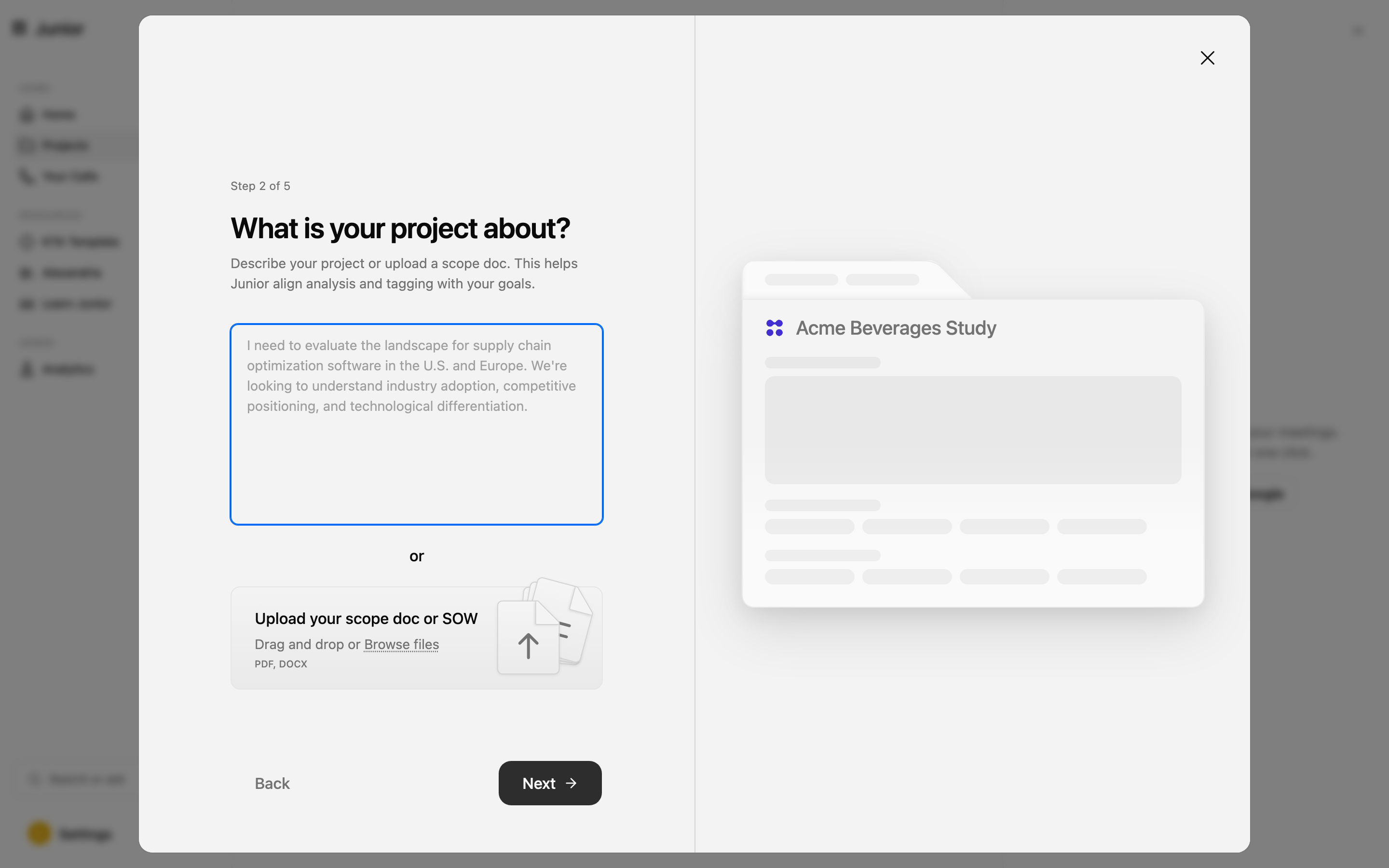
The scope is the most important input in your project. Junior uses it to generate your interview segments, your Expert Network brief, and your Day 0 report.
See what Junior builds
Once your scope is in, Junior drafts your segments, interview guide, Expert Network Brief, and Day 0 Report. Depending on how your firm has set up Junior, you may not see all of these.
Interview segments
Based on your scope, Junior suggests segments: labels that group a project's calls by interviewee type, such as Industry Expert or Customer. Each segment can have its own interview guide and takeaway template.
Interview guides
An interview guide is the set of questions you'll cover on a call. You can:
- Auto-generate a guide from your scope,
- Upload your own (DOCX or PDF only),
- Reuse a guide from another project's library, or
- Edit it inline.
When you record a call, your guide's questions appear as a checklist and tick off automatically as they're covered, so you can see at a glance what's still left to ask.
Expert Network brief
An Expert Network brief is generated from your scope and segments to help you source the right experts. It's editable, so you can refine it before sending it out.
Day 0 report
The Day 0 report is an initial landscape and competitive overview generated from your scope. It can also surface relevant prior firm knowledge from Alexandria, with citations — a read on the market before your first call. It populates once it's ready, then shows a New badge until you open it.
Running Summary
The Running Summary is an always-updating narrative that spans every call in the project. As each new call is processed, the summary grows to reflect what you've learned so far.
Track your progress
The Call Tracker shows how you're progressing toward your interview targets in each segment: how many calls are done, scheduled, and your target. Set a target per segment and the tracker keeps score as calls come in.
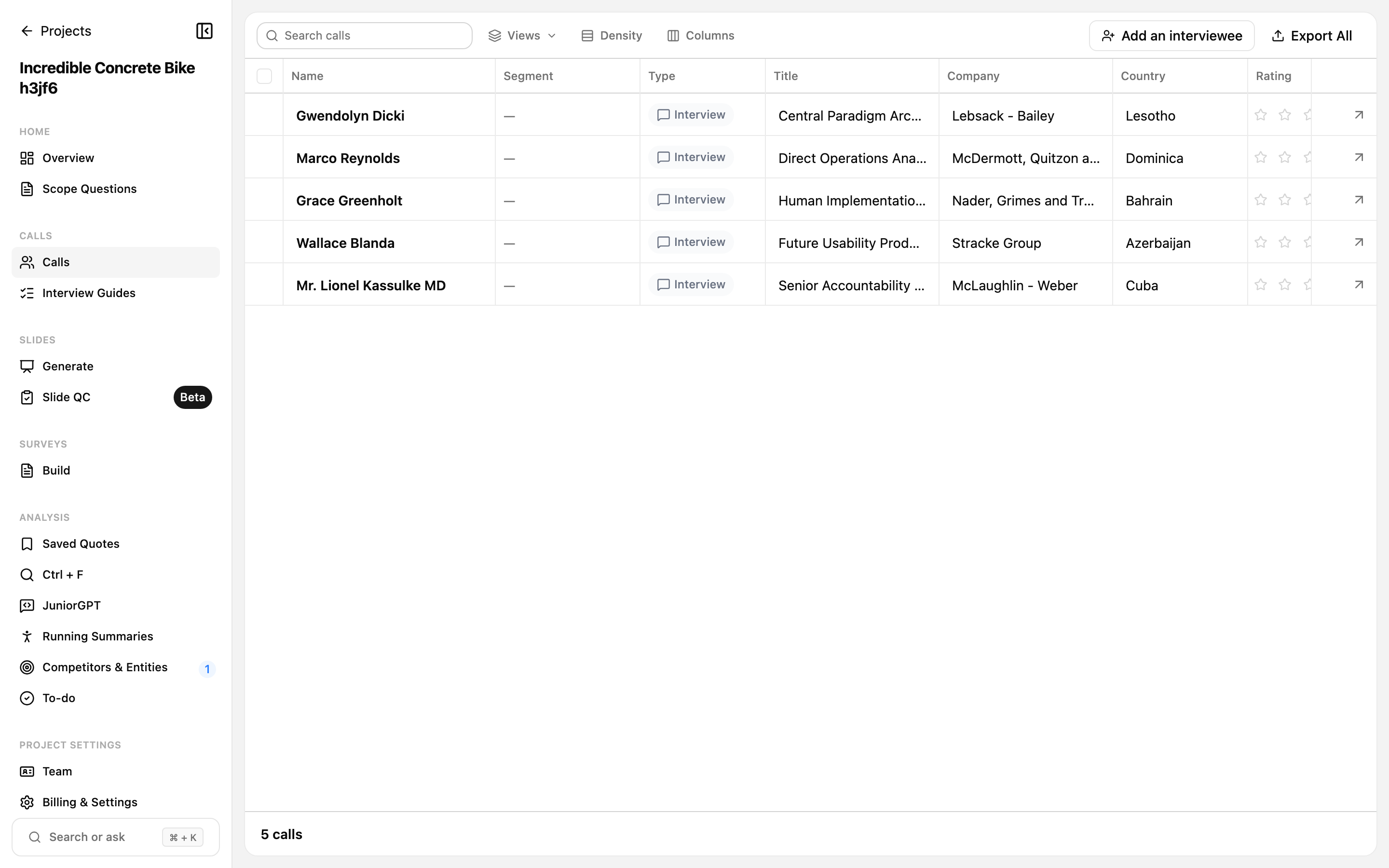
See Insights Grid for tracking structured data across calls.
Add your team
Invite teammates to the project by email. There are two roles:
- Lead: full control of the project. There's exactly one Lead, changed by promotion.
- Member: works within the project.
See Settings & roles for more on what each role can do.
Questions
Did my project save?
Yes. Your project is created the moment you name it, so it's safe even if you close the setup before finishing the later steps. You can come back and add the scope, guide, and teammates any time.
Where do the segments, guide, and brief come from?
They're all generated from your scope document. A clear, specific scope produces sharper segments, better questions, and a more useful brief.
Why is my Day 0 report (or Running Summary) empty?
These fill in over time. The Day 0 report populates once it finishes generating; the Running Summary grows as your calls are processed. If they look sparse early on, that's expected. Check back after your first calls.
Why don't I see the Running Summary?
The Running Summary is a beta feature, so it may not be switched on for your firm. See Signing in & your account to opt into beta features.