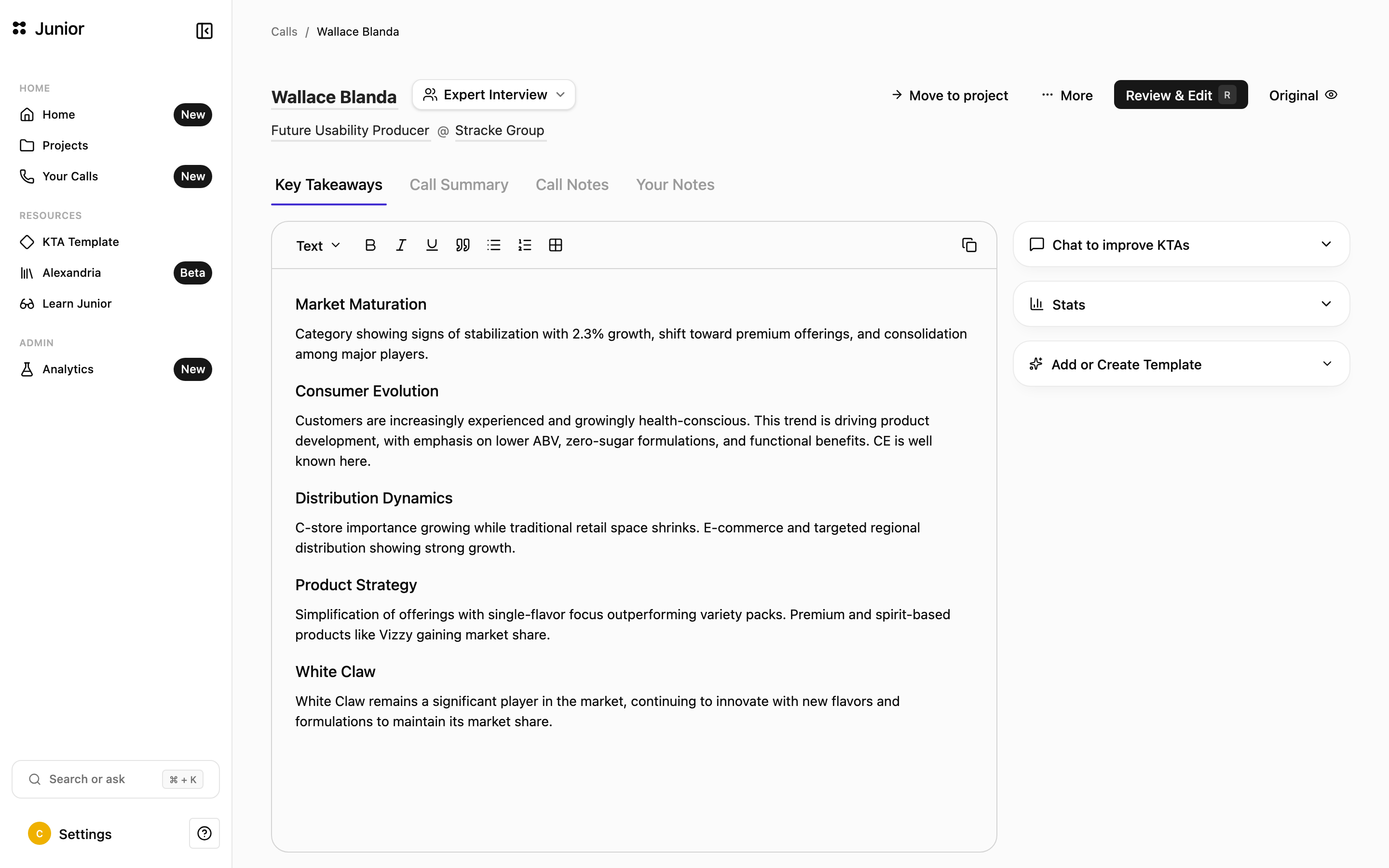
Key Takeaways are the memo layer of a call: the points worth keeping, grouped into themes, each written to stand on its own and linked to where it was said. Where the call summary reads as a short narrative, takeaways break the call into individual points you can scan, edit, and reuse.
The cleaned transcript itself, in question-and-answer form, lives on the call's transcript tab (labelled Call Notes on interviews). Key Takeaways are the shorter, curated layer on top of it.
You can shape how takeaways are written with a template, and edit any point by hand. Once approved, they make a clean record to share — many teams send them straight to a partner to sum up an interview.
How Junior builds your takeaways
Once a call is processed, Junior reads the cleaned transcript and pulls out the points that matter:
- It identifies the important points across the conversation and groups them into themes.
- It writes each point as a clear, standalone statement, something you could drop straight into a memo without needing the surrounding context.
- You can also promote any block from the transcript into a takeaway yourself, using the star icon during review.
Junior also pulls out the key stats an expert cited — market sizes, growth rates, percentages — both inline in the takeaways and in a stats panel you can open alongside them.
Each takeaway links back to the exact moment in the transcript, so you can always check what was said. The result is a memo-ready synthesis of the call, not a word-for-word record, which is what the transcript is for.
Review and approve
Until you approve them, Key Takeaways are a draft generated by Junior, not yet checked by a person. You can edit them directly in the takeaways editor: fix wording, merge, or refine anything that needs a human eye. When they look right, click Approve KTAs to confirm them.
The summary for the call may also need its own review and approval. And if you want to dig into the interview while you review, a built-in chatbot lets you ask questions about the call in plain language.
KTA Templates
Templates shape how your takeaways and summaries are written (their structure, tone, and level of detail) so every call comes out in the format your team expects.
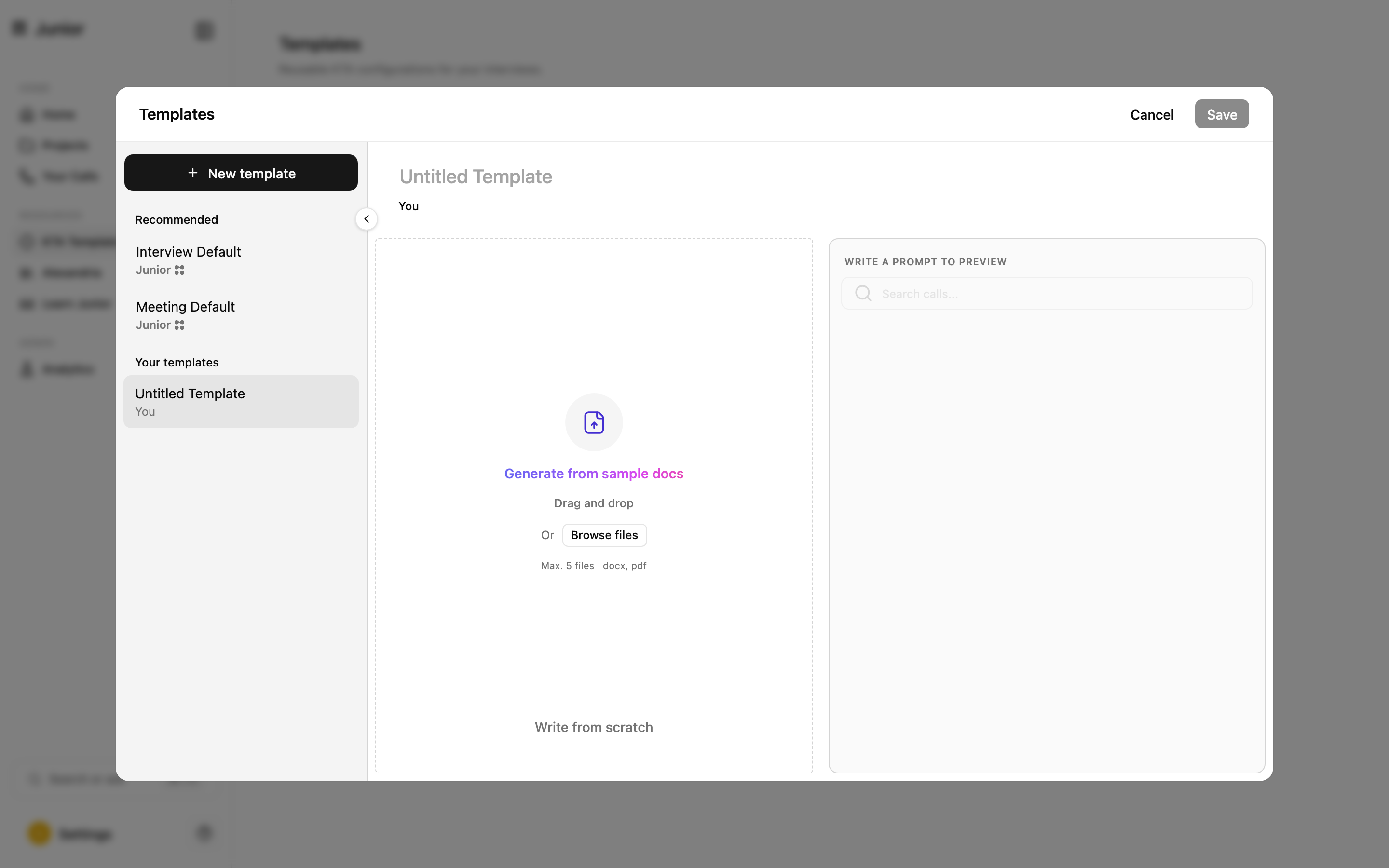
There are four ways to create a template:
- Upload sample files: provide DOCX or PDF examples of the format you want.
- Paste text samples: drop in example text directly.
- Build from existing interviews: pick a few calls whose takeaways you like, and Junior learns their style and structure to match on new calls.
- Write one from scratch: define the format yourself.
Set it up and put it to work
- Set a default so new work uses it automatically.
- Preview a template to see how it'll shape takeaways before you commit.
- Assign templates to segments so every call in a segment comes out in the same format.
A template that's in use can't be deleted. If a template is assigned to a segment or actively shaping takeaways, Junior locks it from deletion. Reassign or unassign it first, then delete.
Questions
Why doesn't a takeaway match the words spoken word for word?
It's deliberate, not a mistake. Key Takeaways are a curated summary, so Junior writes each point to be clean and standalone rather than quoting the expert word for word. Every takeaway links back to the exact moment in the transcript, so you can click through and see exactly what was said. For the verbatim record, use the transcript on the call page.