Junior gives each project and organization a set of controls for who can do what, how projects are configured, and where teams get analytics and financial reporting.
Project roles
Every project has two kinds of member:
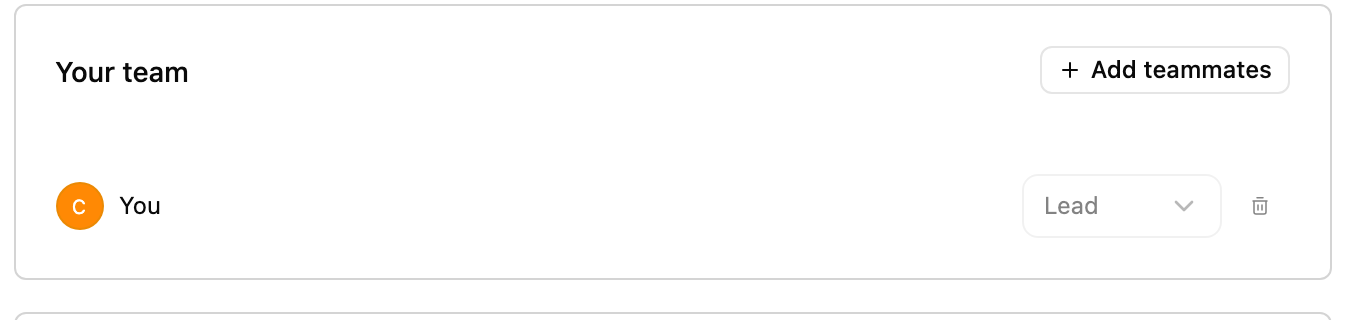
- Lead: the person responsible for the project. A project always has exactly one Lead, which is needed so Junior knows who verifies invoice information.
- Member: everyone else on the project.
You can promote a member to Lead at any time. When you do, the previous Lead automatically becomes a member, since a project can only have one Lead.
Add teammates by email from the project's Team Members settings.
Organization admin roles
Alongside project roles, some people also hold organization-level admin roles. These unlock dedicated dashboards across your whole firm:
- Org Admin: the analytics dashboard.
- Analytics-only admin: the analytics dashboard.
- Compliance Admin: the compliance dashboard.
- Finance Admin: the finance dashboard.
Project settings
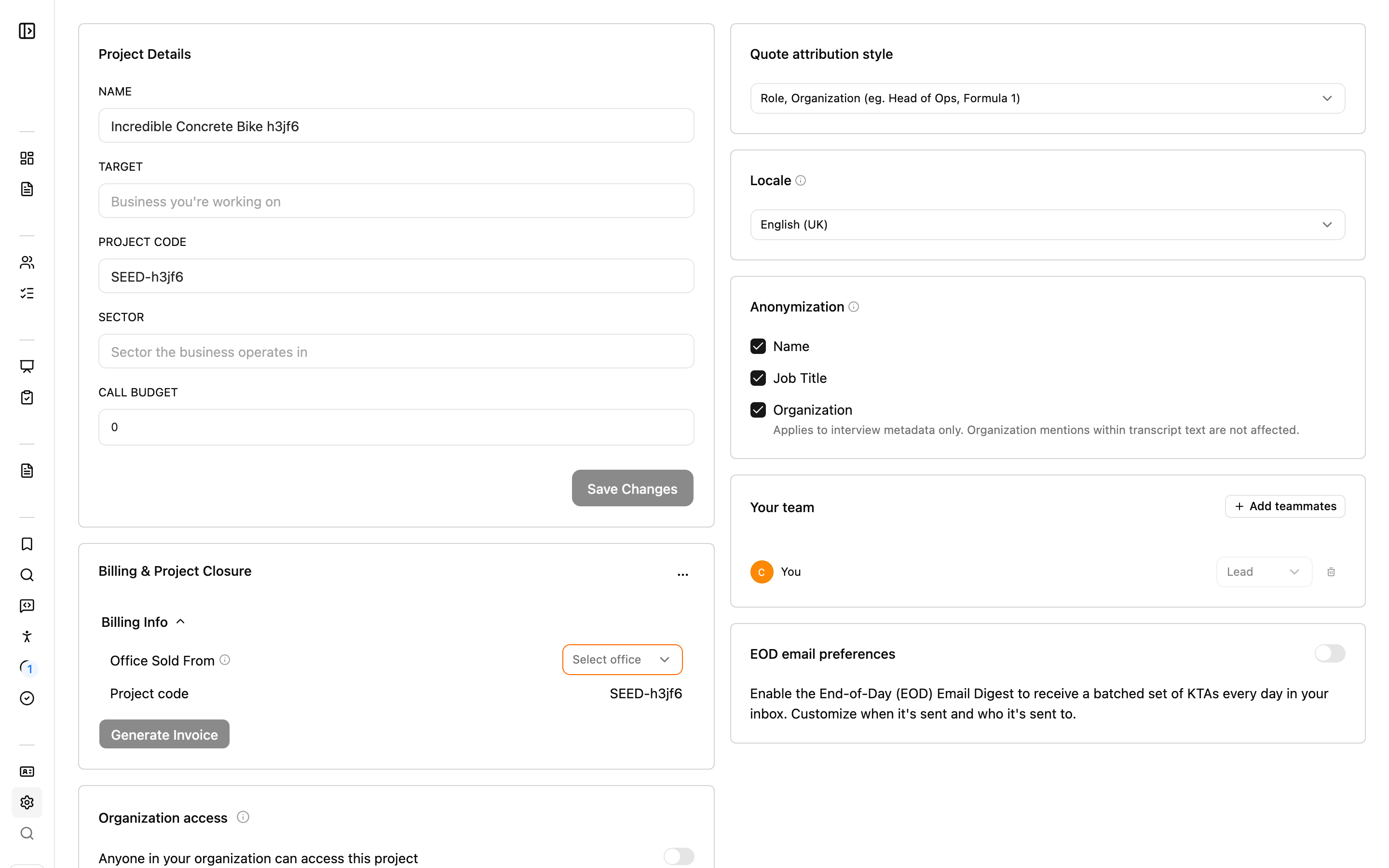
Open a project's settings to configure how it behaves. Settings appear as rows in a left rail, each opening its own pane, and which rows you see varies by firm and by how the project is set up.
| Pane | What it does |
|---|---|
| Edit Project | Change the project's name and other basic information. |
| Project Budget | Set a budget and see cost estimation for the project. |
| Archive or Delete project | Close out a project, including generating an invoice and choosing a billing office. |
| Organization access | Control whether others in your organization can see the project. |
| Project Share Settings | Link the project across organizations. See Sharing. |
| Edit Attribution | Control how quotes are attributed. |
| Locale | Set the project's locale. |
| Anonymization | Configure anonymization for the project. See Anonymization. |
| Team Members | Add teammates by email and manage Leads and members. |
| KTA notifications | Manage notifications for Key Takeaways. |
| Data retention | Set how long the project's data is retained. |
Archiving or deleting a project can generate an invoice. When you close out a project you may be asked to generate an invoice and choose a billing office. Make sure the billing details are correct before you confirm.
Analytics dashboard
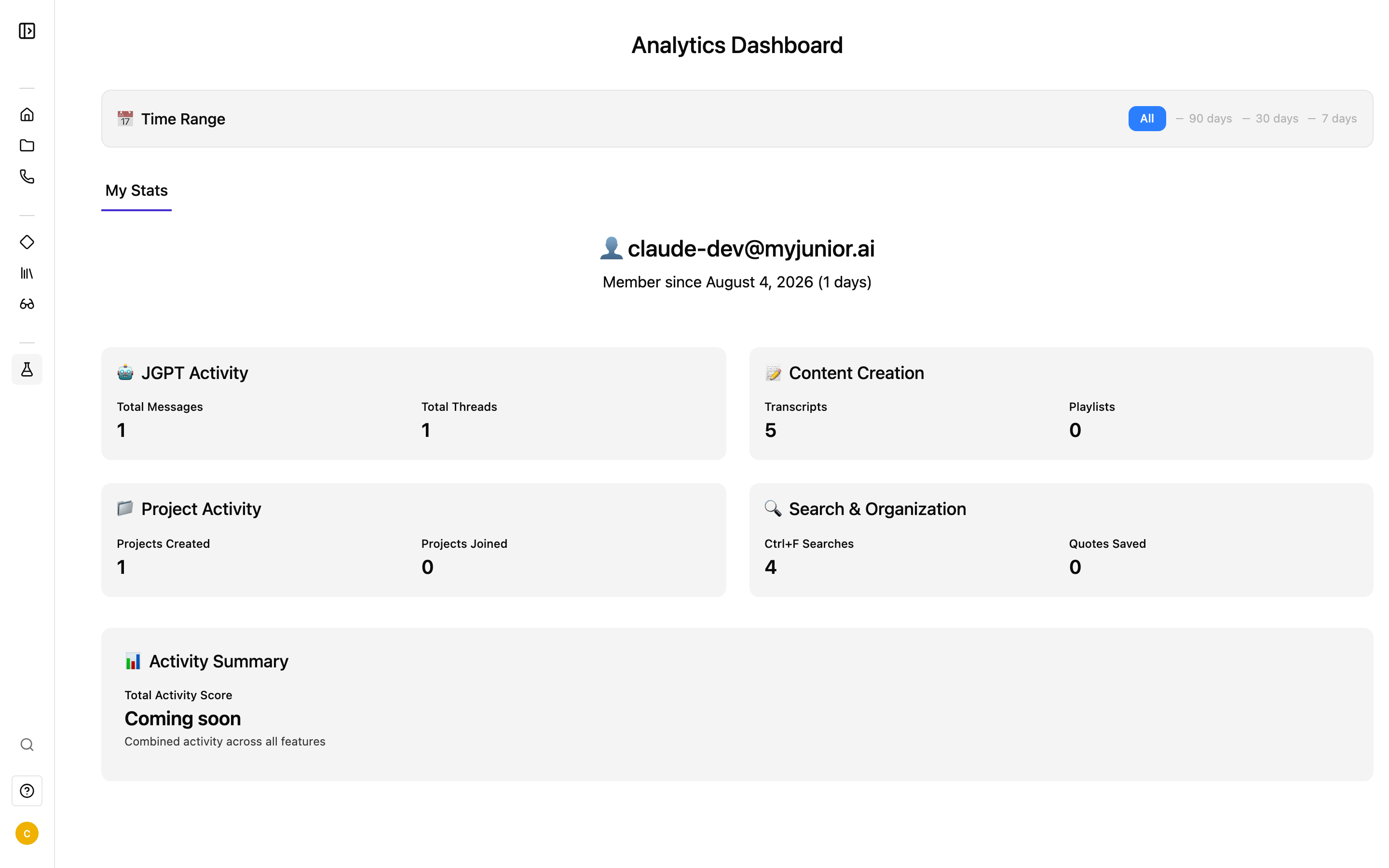
Org Admins and analytics-only admins get an Analytics Dashboard that opens on:
- Headline stats across the top
- Trend charts for key statistics
- Separate project and user tables
Everyone, including non-admins, can see a My Stats view of their own activity.
Finance dashboard
Finance admins get a Finance dashboard for keeping on top of the numbers across the organization:
- Project financials
- Support for multiple currencies
- Invoice downloads
It also runs monthly code checks that reconcile expert-network billing codes.
Questions
Why can't I remove myself from a project?
A project must always have at least one member and exactly one Lead. That's why Junior won't let you remove yourself if you're the only person left, or delete the last remaining member. Add or promote someone else first, then step away.
Why can't I click the 7 / 30 / 90-day analytics ranges?
Custom time ranges in analytics are a paid add-on. If you can't select them, they aren't enabled for your organization yet. To turn them on, contact support@myjunior.ai.
Why don't I see the compliance or finance dashboard?
Those areas are limited to people with the matching admin role. Depending on how your organization has set up Junior, you may or may not have one — admin roles are assigned within your firm. If you need access, ask your organization's admin. See Why you might see different features.