Junior has no passwords to remember. There's nothing to install to use it in your browser: you sign in with a method your firm has enabled, complete a short first-time onboarding, and can then adjust your profile, appearance, and beta-feature settings.
Signing in
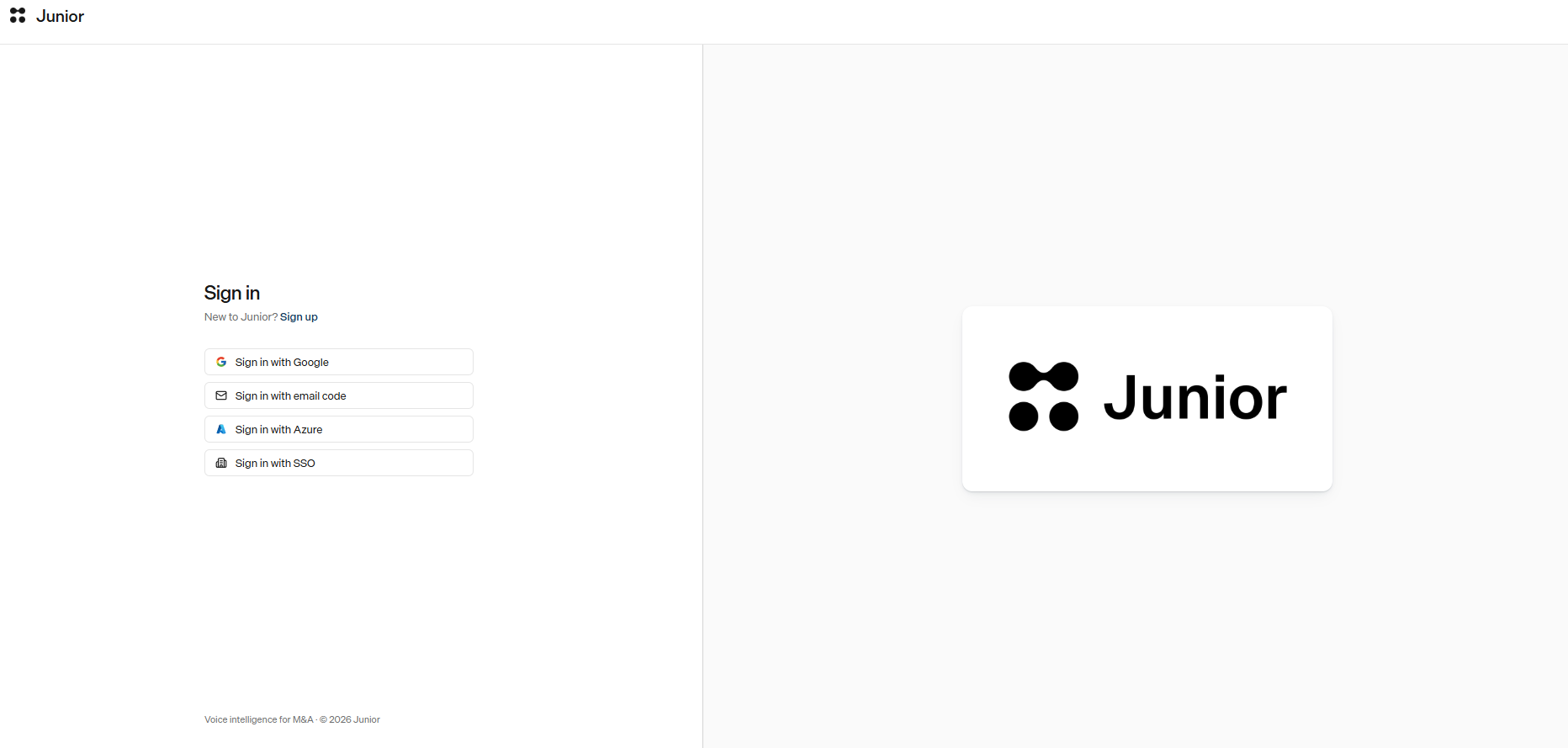
Junior doesn't use passwords. Instead, you sign in with one of the methods your firm has enabled:
- Continue with Google: use your Google work account.
- Continue with Microsoft: use your Microsoft work account.
- Sign in with email code: Junior emails you a 6-digit one-time code (or a magic link) to confirm it's you.
- Sign in with your firm (SSO): a single sign-on button labeled with your organization's name.
Different firms enable different sign-in methods and features, so your options may not match a colleague's at another firm. See Why you might see different features.
Arriving from an invite link
If a colleague invited you to a call or project, the link may take you to a Join Project page. Sign in there and you'll be taken straight to the shared work. If you're already signed in, the link opens the app directly.
First-time onboarding
The first time you sign in, Junior asks a few questions in a short setup wizard.
- Your details: enter your name, agree to the Privacy Policy (required), and optionally tick the box to receive product emails.
- Your role: depending on your firm's setup, choose your Office and Title (and sometimes your Team) from the lists Junior offers or enter them yourself. If none of the listed options fit, pick Other.
You'll land in the app once you're done.
Accepting the Terms of Service
If you're asked to accept the Terms of Service, you'll need to scroll the document all the way to the bottom before the accept button becomes available. This makes sure the full terms have been in front of you.
Some firms also show a one-time "Before you get started" notice on your first login, a short usage or compliance message from your organization. Read it and continue.
Your account settings
Open the Settings modal to manage your profile and preferences.
- Profile: set your avatar and name. Your email is shown here but can't be changed.
- Appearance: turn on Dark Mode and switch to 24-Hour Time if you prefer.
- Beta Features: turn on the Opt in toggle to see the beta features currently available to try.
- Calendar: connect your calendar, or disconnect one you've already connected. Disconnecting asks you to confirm first.
Questions
Do I need a password?
No. Junior is passwordless. You'll either use your existing Google, Microsoft, or SSO login, or a one-time code Junior emails you.
Why did onboarding only ask me one screen of questions?
If your firm uses single sign-on and it already supplied your title and office, Junior skips the second step so you don't re-enter them.
Why is the product-emails box already ticked (or not)?
It depends on your region. In most places the box is ticked by default; in the EU and UK it's unticked, so receiving product emails is opt-in. Either way, tick or untick it as you prefer.
How do I get early features?
Go to Settings → Beta Features and turn on Opt in. You'll then see the beta features listed there and can try them before they roll out to everyone.
My calendar didn't connect
If something goes wrong while your calendar is being connected, Junior now shows an error instead of returning you to Settings with nothing changed. Try connecting again from Settings → Calendar, and if it keeps failing, email support@myjunior.ai.
'No workspace found' when connecting
If linking a Chrome extension or AI assistant says no workspace was found for your email, that address isn't tied to a Junior account. Make sure you're using the same work email you sign in with. If the problem continues, email support@myjunior.ai.