When you have a remote meeting you'll be attending, the simplest way to capture it is to send Junior's note-taking bot. It joins the call, records, and hands you a clean transcript and takeaways afterward — you just have the conversation.
Send the bot to a meeting
- Open the call and choose Send Junior to record to open the Send Junior Bot step.
- Give the bot a name. This is how it appears to other participants in the meeting.
- Paste the meeting URL (Zoom, Teams, or Google Meet).
- Choose to send it now or schedule it for a later date and time.
- Review the recording consent notice, then click Confirm & Send Bot.
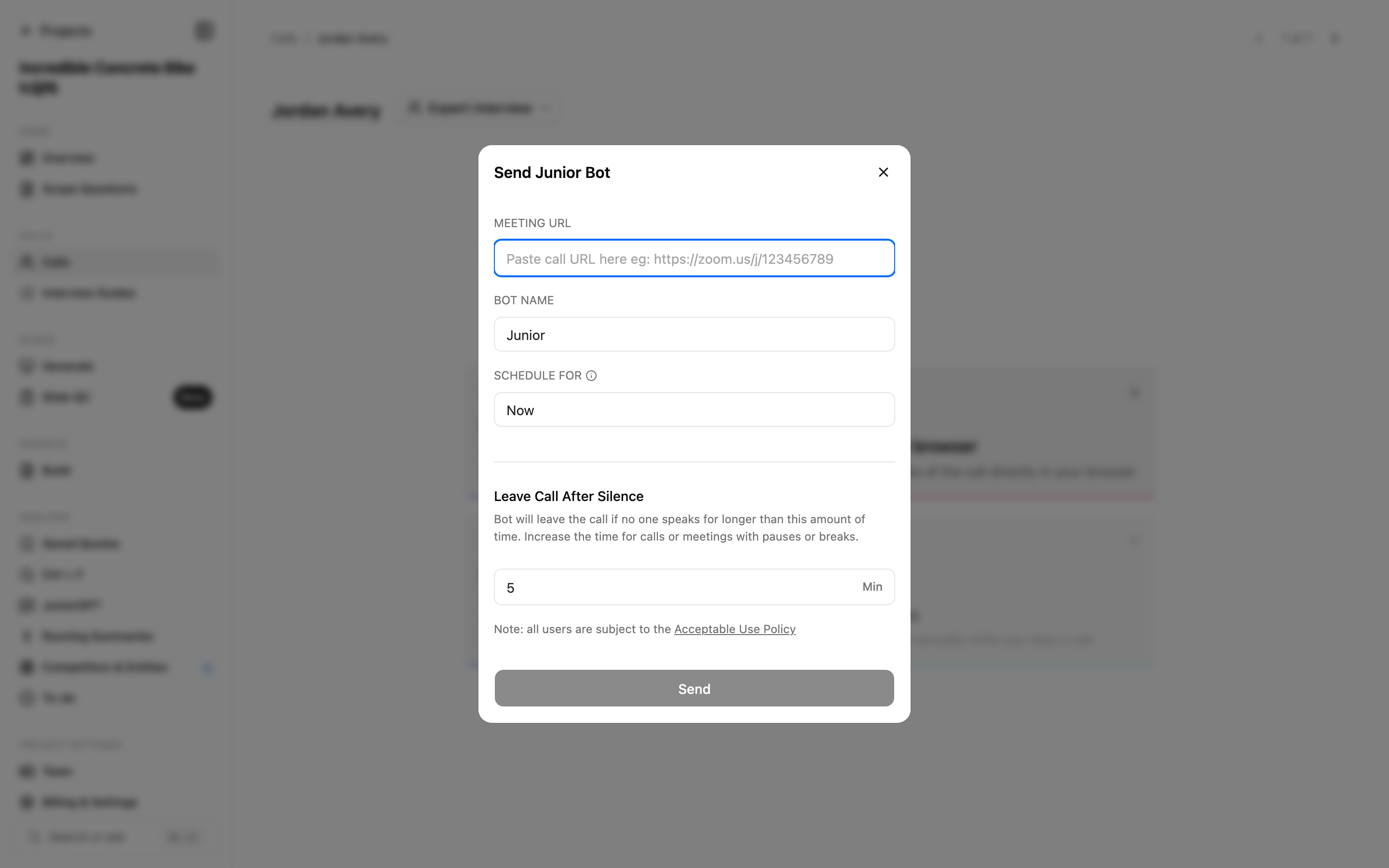
Leave Call After Silence
Set a Leave Call After Silence limit and the bot will automatically leave if no one speaks for longer than the number of minutes you choose. This keeps the bot from sitting in an empty meeting after everyone has gone.
Scheduling and calendar-synced bots
If you send the bot for later, the scheduled call shows its scheduled time, along with options to Reschedule, Cancel Bot, or record/upload instead if your plans change.
When a call comes from a meeting on your connected calendar, the meeting link and time are locked, and Junior keeps the bot in sync with the event automatically.
The pre-call brief
Depending on how your firm has set up Junior, you may see a pre-call brief before the meeting starts. It shows:
- Attendees on the call
- The agenda from the calendar invite
- Past-call history with the same attendees
- Prep from past calls — for a recurring meeting, this draws on that meeting's own earlier occurrences
- Editable prep notes — the notes you write here stay with the call
- A Join meeting button
The agenda and past-call history appear when the call is linked to an event on your connected calendar.
While the bot is live
Once the meeting starts, you'll see the bot move through "Joining call" and then "Recording in Progress."
Questions
Why did the bot leave early?
The silence timeout elapsed, with no one speaking for longer than your Leave Call After Silence setting. Increase the limit if your calls tend to have long quiet stretches.
I rescheduled the meeting — do I need to re-send the bot?
Not for calendar-synced bots. Junior updates automatically: if the meeting is moved or canceled, the bot follows. Manage the event in your calendar as usual.
Is there an extra step before recording starts?
Some firms require you to click Confirm & Start Recording before capture begins. If you see this, recording won't start until you confirm. Whether you see this step depends on your firm's setup.
The bot won't join the meeting.
See the common reasons on Getting calls into Junior: typically a restricted meeting, an unsupported link type, a past event, or recording turned off for your firm.